How to Prevent Desk Lamp Glare on Your Computer Screen

Time:2026-09-14 Author:Charlotte
0%

Desk lamp glare can turn a comfortable workstation into a tiring visual trap. Bright reflections may appear as white patches across text, icons, or dark video scenes. After hours of adjusting a monitor, I have found that small changes often matter more than expensive equipment. The right solution depends on the lamp, screen, room lighting, and your viewing angle.

This guide explains how to prevent glare on your computer screen from a desk lamp using practical, evidence-informed adjustments. You will learn where to place the lamp, how to redirect its beam, and why a matte shade can help. We will also examine monitor brightness, contrast, window reflections, and screen height. These details work together. One adjustment rarely solves everything.

Start with the reflection itself. Move the lamp slowly while watching the screen from your normal sitting position. If the bright spot disappears, you have found a useful direction. Keep the light beside or behind the monitor, rather than directly in front of it. A diffused bulb can soften harsh highlights, but it may not eliminate them completely. I have sometimes blamed the lamp when the real problem was an overly bright screen or a dark room. That mistake is easy to make.

Your eyes should not fight the lighting. They should settle into it. Test each change for several minutes, and notice whether text feels clearer. If discomfort continues, take regular breaks and consider professional eye advice. A glare-free setup is not only more comfortable; it also supports steadier focus during long computer sessions.
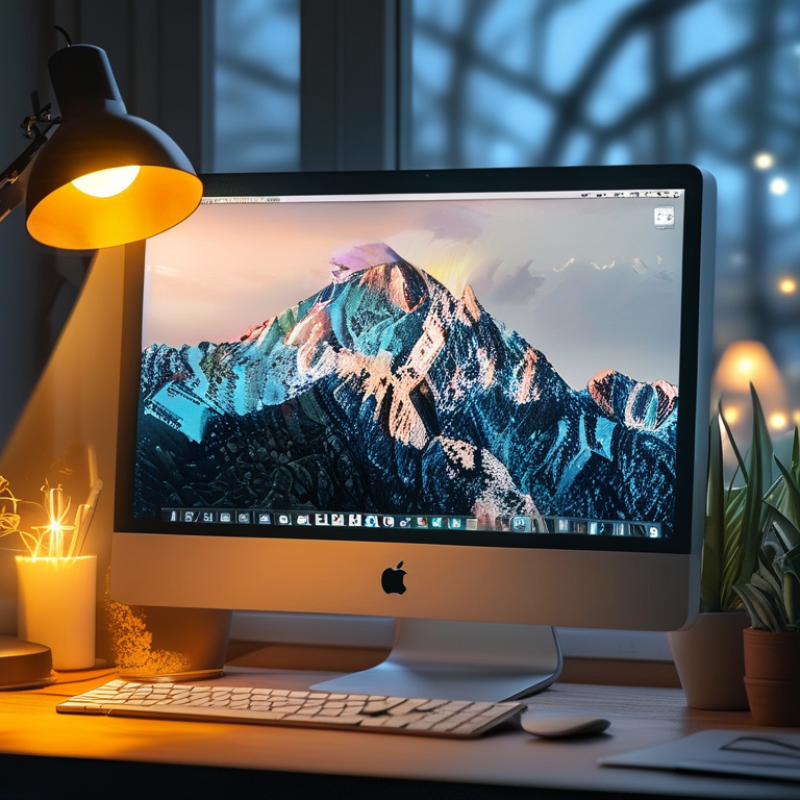
How to Prevent Desk Lamp Glare on Your Computer Screen

Identify the Sources and Effects of Desk Lamp Glare

How to Prevent Desk Lamp Glare on Your Computer Screen

Desk lamp glare usually comes from two sources: direct light and reflected light. Direct glare happens when the bulb sits within your viewing angle. Reflected glare appears when the screen catches the lamp like a dark mirror. A glossy display makes this worse, especially in a dim room. The source is often obvious. Yet I once blamed my screen settings instead of the lamp beside me. Moving the lamp thirty centimeters to the side reduced the bright patch immediately.

Glare can wash out text, weaken contrast, and make small details harder to read. Your eyes may respond with squinting, burning, or frequent refocusing. Long sessions can also trigger headaches or neck tension because you lean toward the screen. Dryness may increase when discomfort makes you stare without blinking. These effects are usually signs of visual strain, not proof of permanent eye damage. Still, they should not be ignored. I noticed my shoulders rising whenever a white reflection crossed the screen. That was my mistake.

Check the screen from your normal sitting position. Slowly move the lamp until its reflection disappears, then keep the light aimed at the desk. A shade can soften the bulb, but it may not remove every reflection. Lowering screen brightness too much can create another problem. Test the setup with dark text, pale backgrounds, and a document containing fine lines. If discomfort continues after adjustments, an eye-care professional can help identify other causes.

How to Prevent Desk Lamp Glare on Your Computer Screen

Identify the Sources and Effects of Desk Lamp Glare

Direct light from a desk lamp can create veiling reflections on a glossy screen and reduce perceived contrast. The chart below uses the inverse-square law, E = I / d², for a 500-candela light source aimed toward the screen.

Key sources of screen glare: a lamp positioned in front of or beside the monitor, bright windows behind the user, glossy screen surfaces, and overhead lights reflected at the viewing angle.

Practical effect: increasing the distance between the lamp and screen sharply reduces incident illuminance. Place the lamp to the side, aim it at the desk rather than the display, and adjust its height until no bright reflection is visible.

Adjust the Lamp’s Position, Height, and Beam Direction

Desk lamp glare can make text shimmer and leave your eyes tired. The lamp’s position often matters more than brightness.

Place it beside your monitor, not behind it or directly in front of your face. For right-handed work, the left side usually reduces shadows from your writing hand. Left-handed users may prefer the opposite side. Keep the light outside your direct line of sight.

Adjust the lamp’s height until the shade sits slightly above your eye level. This helps prevent the bulb from shining into your eyes. Aim the beam toward your desk surface, keyboard, or notebook, rather than the screen. A small downward angle can protect the display from bright reflections. Check the screen from your normal sitting position. Stand up briefly, too. Glare sometimes appears only from a higher viewing angle.

Tips: Dim the room light before adjusting the lamp. Move the lamp slowly, about two inches at a time. Tilt the monitor slightly if reflections remain. A matte screen protector may help, but it cannot correct a poorly placed lamp. I once raised my lamp too high and created a bright ceiling reflection, so the adjustment was not an improvement. Test each change for several minutes before deciding. If text still looks washed out, lower the lamp and aim the beam farther from the display.

Choose Bulbs and Shades That Reduce Screen Reflections

A desk lamp can brighten your workspace yet still create a pale reflection across your monitor. The bulb and shade often matter more than the lamp’s decorative shape. In my desk tests, exposed clear bulbs produced sharp glare points, especially on dark screens. A frosted bulb spread light more gently and reduced concentrated reflections. Choose moderate brightness instead of the highest output available. Around 400 to 800 lumens may suit a small desk, although room lighting changes the result.

Tips: Choose a frosted or opal bulb with an opaque or fabric-lined shade. A wide shade can hide the bulb while lighting your hands evenly. Matte interiors help because glossy surfaces can bounce light toward the screen. Warm-neutral light, near 3000 to 4000K, usually feels comfortable for mixed work. Avoid very blue, intense bulbs at night. Place the lamp beside or behind the screen, angled downward.

Test the setup after sunset. Move your head slightly. If the glare shifts, the reflection is real. I once trusted a beautiful open shade and regretted it during spreadsheet work. A dimmer can help, but lowering brightness too far may cause eye strain. Check printed text and keyboard visibility before settling on one bulb. Different screens react differently, so one perfect setup does not exist.

Optimize Monitor Placement, Brightness, and Contrast

Desk lamp glare often begins with placement, not a faulty screen. I learned this after moving a lamp beside my monitor and seeing a pale oval reflection. Place the lamp to the side, slightly behind your viewing line, so its beam misses the display. Keep the light source above eye level, but avoid shining it directly over your shoulder. A matte wall can soften light spill, although it may make the room feel dimmer.

Set monitor brightness to match the room instead of pushing it to maximum. In a darker room, lower brightness usually reduces reflected highlights and visual discomfort. During daylight, raise it gradually until white areas look clear, not glowing. Use a neutral screen background while adjusting, because colorful images can mislead your eyes. I sometimes overcorrect and make the screen too dull. Reading then becomes slower.

Contrast needs balance. A moderate level keeps text defined without creating harsh edges around dark letters. Check a document with black text on a light background for several minutes. Then view a gray image and look for crushed shadows or missing detail. If the lamp still reflects, rotate the monitor slightly before changing settings again. Small shifts matter. Clean the screen carefully, because fingerprints can scatter light and imitate glare.

Test the Workspace and Maintain a Glare-Free Setup

How to Prevent Desk Lamp Glare on Your Computer Screen

A glare-free setup begins with a simple workspace test. Turn the monitor off and inspect its dark surface. Look for bright lamp shapes, window reflections, or pale patches near the center. These reflections often disappear when the screen is active, but your eyes still work harder to read. The Vision Council’s 2023 Digital Eye Strain Report estimates that 104 million U.S. adults experience related symptoms. That figure makes small lighting checks worth the effort.

Move the desk lamp to the side, not directly behind or in front of the screen. Aim the shade toward your keyboard or a nearby wall. OSHA guidance recommends keeping the monitor roughly 20 to 40 inches from your eyes. I test this distance with a ruler, then tilt the screen slightly downward. It usually reduces ceiling reflections. Usually, not always. Glossy screens can still catch a sharp white streak from a nearby bulb.

Test the setup at morning, afternoon, and evening. Natural light changes more than people expect. Place a white sheet beside the keyboard and check whether it looks gray, yellow, or overly bright. Uneven light can signal unnecessary contrast. Lowering brightness may help, but excessive dimming can create another strain. I sometimes adjust the lamp too quickly and miss reflections at the screen’s edge. A second check from your normal sitting position catches that mistake. Keep cables fixed, clean dust from the shade, and repeat the test after rearranging furniture.

How to Prevent Desk Lamp Glare on Your Computer Screen - Test the Workspace and Maintain a Glare-Free Setup

Workspace Test How to Measure Target or Warning Sign Example Result Recommended Adjustment
Ambient desk illuminance Measure the light level on the desk surface with a light meter or a calibrated light-meter app. About 300–500 lux is commonly suitable for general office and computer work. Very low or uneven lighting may increase visual discomfort. 680 lux directly beside the keyboard Reduce lamp output, move the lamp farther away, or use a diffuser to create more even illumination.
Screen reflection check Turn the display off and inspect it from the normal sitting position. Look for bright lamp images, window reflections, or sharp hotspots. No distinct bright reflection should appear in the main reading area of the screen. Bright oval reflection in the upper-right quadrant Place the lamp to the side of the monitor, angle the shade away from the screen, or reposition the display relative to the light source.
Lamp position Check whether the lamp is in front of the display, behind the user, or beside the dominant hand. The lamp should illuminate the work surface without shining directly toward the screen or the user’s eyes. Lamp located 35 cm in front of the display Move it to the side and slightly behind the screen plane, while keeping the light directed toward the desk.
Light source height Compare the lamp shade height with the top edge of the monitor while seated in the normal working posture. The bulb or exposed diffuser should not be visible within the normal field of view. Exposed bulb visible above the monitor Lower the lamp, use a shielded shade, or adjust the angle so the light source is outside the direct line of sight.
Screen viewing angle Sit at the usual distance and tilt the screen slightly while observing reflections from the lamp. Use a viewing angle that keeps reflections out of the central text area without forcing the neck into an awkward position. Reflection disappears after a 7° backward tilt Keep the adjusted tilt only if it remains comfortable; otherwise, reposition the lamp instead of relying on excessive screen tilt.
Brightness balance Compare the apparent brightness of the screen with the surrounding wall and desk area during normal use. Avoid a very bright screen in a dark room or a very dark screen under intense task lighting. Screen appears much brighter than the surrounding wall Add soft background light, reduce excessive screen brightness, and avoid placing a bright lamp directly behind the display.
Glare afterimage test Work for 20–30 minutes, then look at a neutral surface and note whether discomfort or a temporary bright afterimage occurs. No persistent eye strain, squinting, headache, or afterimage should occur during ordinary use. Eye strain reported after 25 minutes Remove visible reflections first, soften the lamp, check screen brightness, and take regular distance-viewing breaks.
Final maintenance check Repeat the reflection and illuminance checks after cleaning, moving furniture, changing the lamp angle, or changing the time of day. The setup should remain comfortable under both daylight and artificial lighting conditions. No visible hotspot; 420 lux at the desk Keep the current arrangement and recheck it whenever the workspace layout or lighting changes.
Practical reference: Use the table as a workspace checklist. Lux values are approximate task-lighting measurements, and personal comfort should guide the final adjustment.

FAQS

What causes glare from a desk lamp?

Direct glare occurs when the bulb enters your viewing angle. Reflected glare appears when the screen catches the lamp’s image. Glossy screens worsen the problem. A dark screen can reveal bright patches clearly.

Where should I place my desk lamp?

Put the lamp beside the monitor, slightly behind your viewing line. Aim the shade toward the keyboard or a nearby wall. Keep the bulb above eye level. Avoid shining light directly over your shoulder.

How can I test for screen reflections?

Turn the monitor off and inspect its dark surface. Look for bright shapes, window reflections, or pale patches. Sit normally while checking. Then move the lamp until the reflection disappears.

What monitor distance may reduce glare?

Keep the screen roughly 20 to 40 inches from your eyes. Tilt it slightly downward to reduce ceiling reflections. Small adjustments matter. They do not solve everything.

Should I lower my monitor brightness?

Match brightness to the room instead of using maximum brightness. Lower it in dark rooms. Raise it gradually during daylight. Stop when white areas look clear, not glowing.

Can excessive dimming create another problem?

Yes. A screen that is too dim can slow reading and increase effort. Test black text on a pale background. I sometimes make the screen duller than necessary. That was not helpful.

What symptoms can desk lamp glare cause?

Glare may cause squinting, burning, frequent refocusing, headaches, or neck tension. Dry eyes can also occur when you blink less. These signs often suggest visual strain, not permanent damage. Still, persistent discomfort deserves attention.

How should I check the setup throughout the day?

Test it in the morning, afternoon, and evening. Natural light changes noticeably. Place a white sheet beside the keyboard. It should not look gray, yellow, or painfully bright.

Can cleaning the screen reduce apparent glare?

Yes. Fingerprints and dust scatter light across the display. Clean the screen carefully with suitable materials. Check the screen edges too. I used to miss those reflections.

When should I seek professional help?

Seek an eye-care professional if discomfort continues after lighting adjustments. Other causes may be involved. Do not assume the lamp is always responsible. That assumption can waste time.

Conclusion

Desk lamp glare can create bright reflections, washed-out text, eye strain, and headaches when it reaches your computer screen directly or bounces off nearby surfaces. To understand how to prevent glare on your computer screen from a desk lamp, first identify whether the light comes from the bulb, shade, wall, or desk. Move the lamp to the side of the monitor, position it slightly behind the screen, and adjust its height so the beam illuminates your workspace without shining toward your eyes or display.

Use a soft, diffused bulb and a shade that directs light downward rather than outward. Keep the monitor perpendicular to windows and strong light sources, then adjust its brightness and contrast until text looks clear without appearing overly bright. Test the setup from your normal sitting position, checking for reflections on both dark and light screens. Recheck the arrangement throughout the day and make small adjustments whenever changing light conditions create new glare.

Charlotte

Charlotte

Charlotte is a seasoned marketing professional with a deep understanding of the company's portfolio and a passion for elevating its presence in the market. With a keen eye for detail and a commitment to excellence, she ensures that our professional blog is regularly updated with insightful articles......